Hardware Wiring
When Skye/Luna is shipped, the Tianzhun 003 control unit is already integrated inside the robot. On the user side, network, peripheral, and headset connections are mainly completed through the exposed rear interfaces. The overall wiring principle is the same as Marvin Pro: the robot, host PC, headset, and router / switch must be on the same LAN.
1. Devices and Accessories
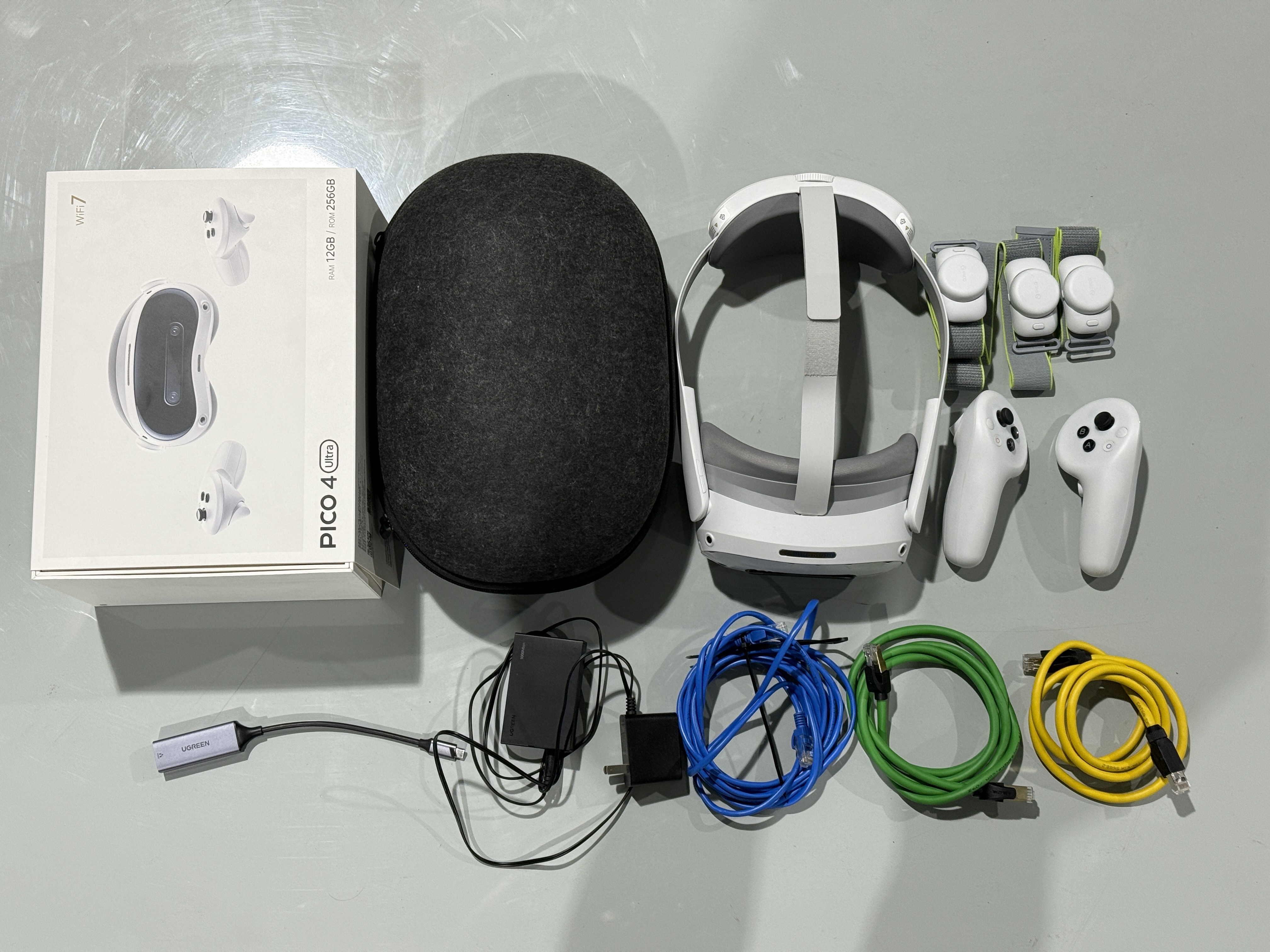
Before wiring, confirm that the Skye/Luna device, headset, controllers / sensors, Ethernet cables, Type-C Ethernet adapter, power adapter, and other accessories are complete.
2. Rear Interface Reference
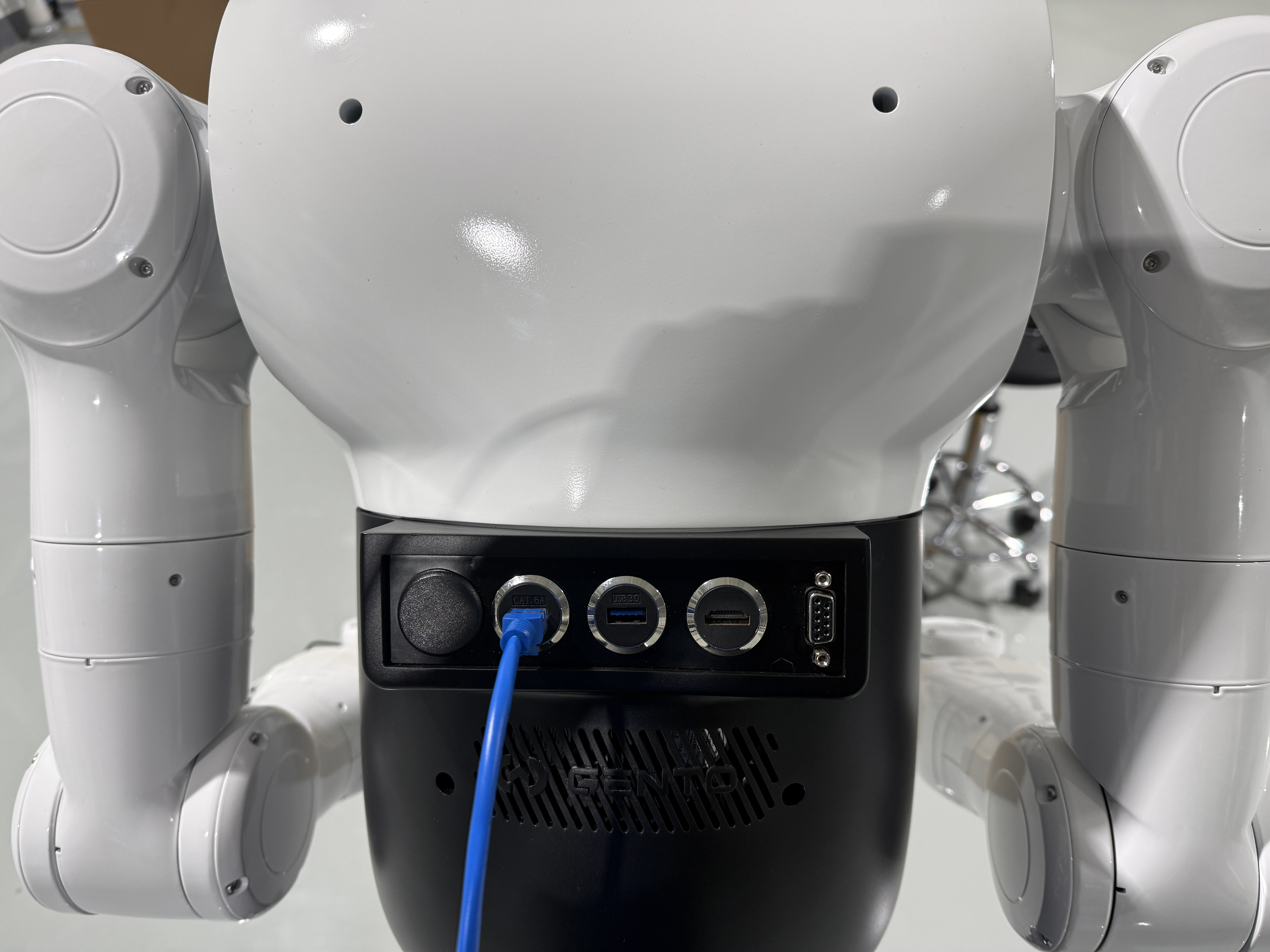
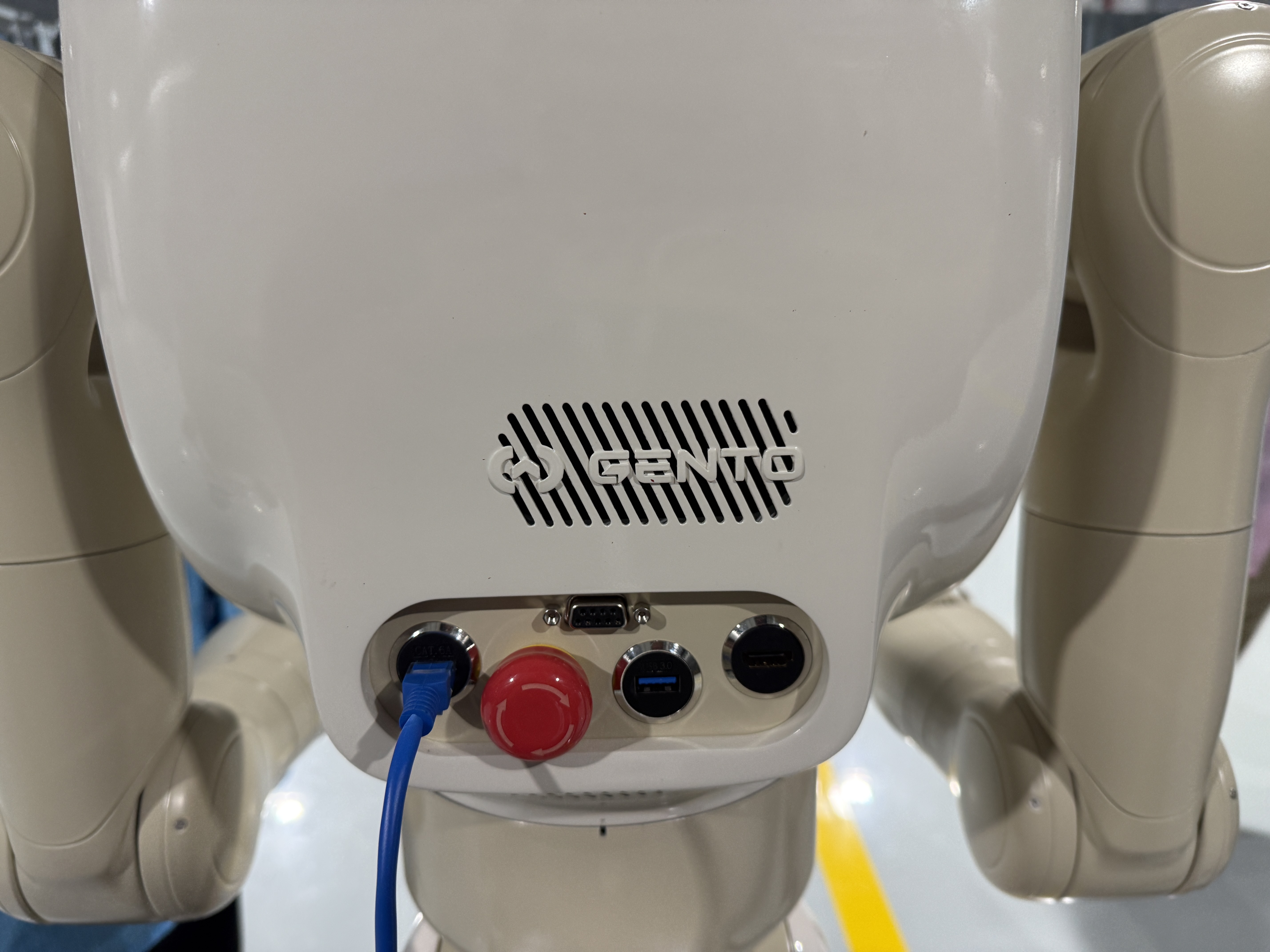
The rear interface positions and appearance of Skye and Luna are slightly different. During on-site wiring, use the physical interface of the corresponding model as the reference.
2.1 Skye Rear Interfaces
2.2 Luna Rear Interfaces
3. Network Wiring
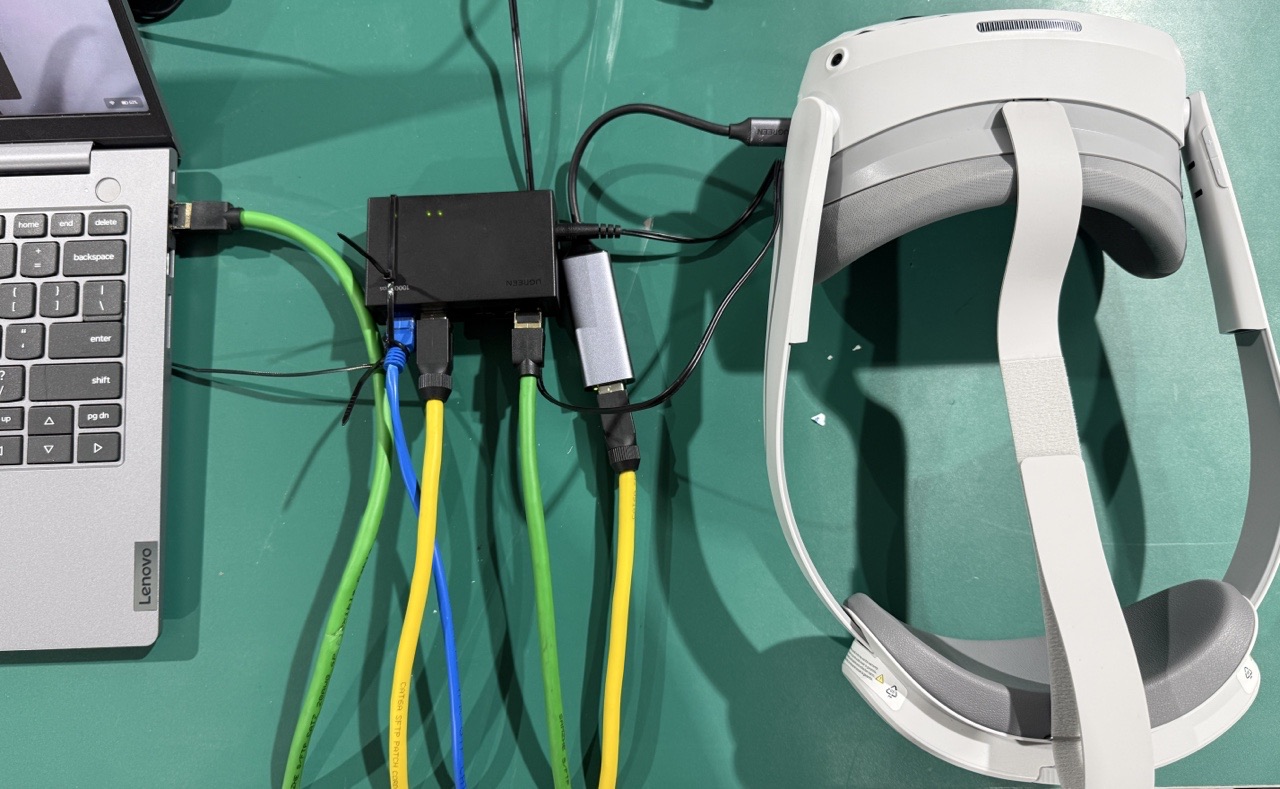
Connect the network as follows:
For wired headset networking, connect a Tianzhun controller to Ethernet port 1, whose default connection address is 6.6.7.100. For a Lingjing Thor controller, use Ethernet port 2, whose default connection address is 6.6.8.100. Do not interchange the two ports. If the site network was changed, follow the delivered configuration.
- Connect the robot rear Ethernet port to the router / switch.
- Connect the host PC to the same router / switch.
- Connect the headset to the same router / switch through the Type-C Ethernet adapter.
- Confirm that the robot, host PC, and headset are on the same subnet.
4. Wiring Check
Before powering on and starting the system, check each item:
| Check item | Requirement |
|---|---|
| Robot rear Ethernet port | Ethernet cable is firmly inserted and connected to the router / switch |
| Host PC network | On the same LAN as the robot |
| Headset network | Wired access through the Type-C Ethernet adapter |
| Power and emergency stop | Power connection is normal and the emergency stop button is released |
| Cable status | Ethernet cables, adapters, and power cables are not loose |
5. Notes
- Headset Wi-Fi is not recommended for teleoperation. Use the wired network connection first.
- Connect the headset cable to port 1 for a Tianzhun controller and port 2 for a Lingjing Thor controller.
- After wiring is complete, proceed to environment configuration and startup debugging.
- If the host PC cannot connect to the robot, first check the Ethernet cable, router / switch, power, and IP subnet.